
MCP Setup Guide
Connect Clone.Store to Claude and build Shopify product pages from chat. Setup takes about a minute.
Prerequisites
- A Clone.Store account. You can sign up for free during setup.
- Nothing else. You only need a Shopify store when you want to publish a page, not to build one.
Setup for Claude
EasiestWorks on claude.ai and Claude Desktop. Claude connects over OAuth: you log in to Clone.Store once and approve access. There is no API key to copy or manage.
- In Claude, go to Settings, then Connectors.
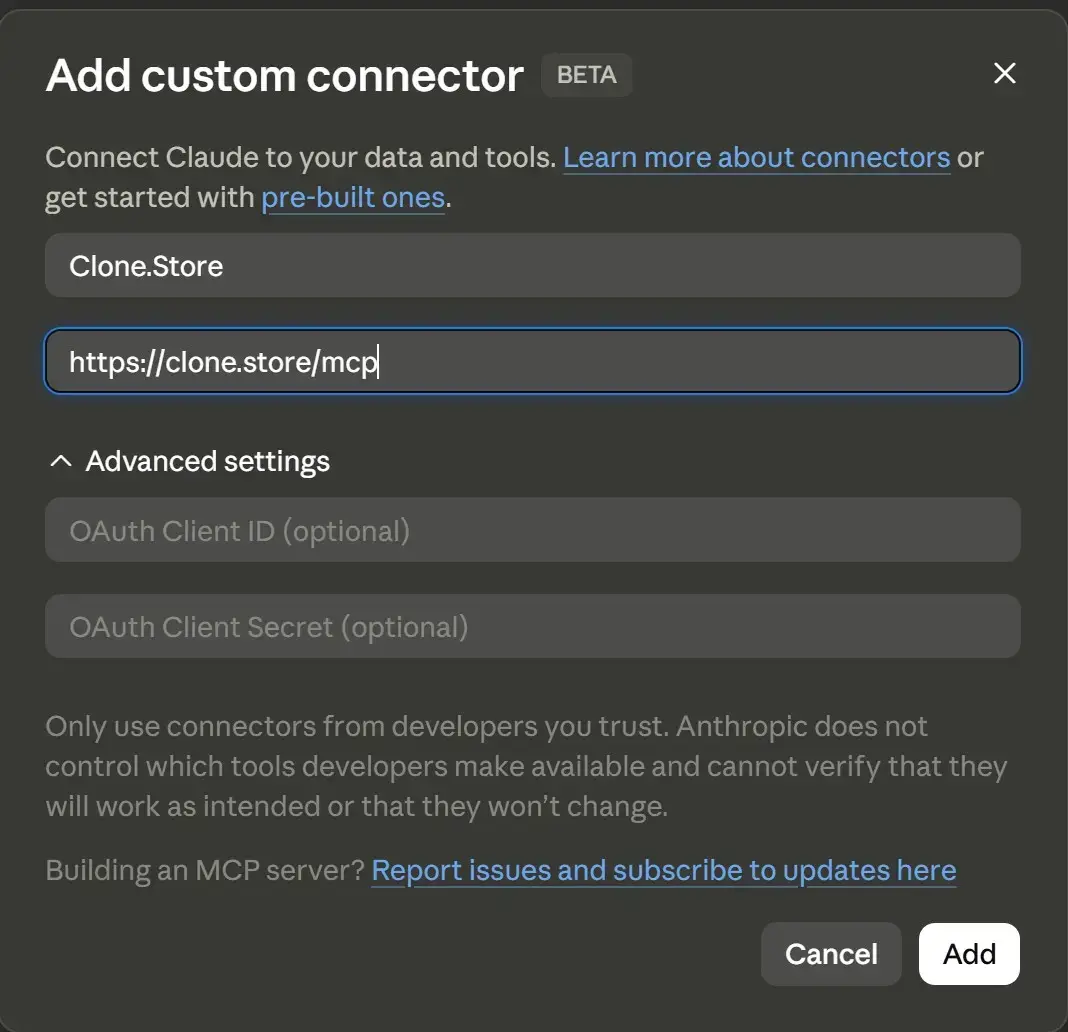
- Click Add custom connector.
- Set the name to Clone.Store and enter the URL:
https://mcp.clone.store/mcp - Click Connect. A window opens; log in to Clone.Store and approve access.
- Done. Start chatting.
Other MCP clients
We currently support Claude on web and desktop, and we are opening up more clients. The server itself is a standard remote MCP server:
- Endpoint:
https://mcp.clone.store/mcp - Transport: Streamable HTTP
- Auth: OAuth login with your Clone.Store account. There are no API keys.
If your favorite client is not supported yet, let us know and we will look into it.
Example prompts
Once connected, just talk to your assistant. It picks the right tools on its own. A few things to try:
- Build a product page from this link: [paste a Shopify, Amazon, or AliExpress link]
- Here is a photo of my product. Make me a product page.
- Show me my previews.
- Change the accent color to dark green and rewrite the headline.
- Swap the image in the second section for one on a white background.
- Publish this page to my Shopify store.
Tool reference
The MCP server exposes 26 tools. Your assistant discovers them automatically, so you never call them by name. This is what it can do on your behalf.
Stores and account
| Tool | What it does |
|---|---|
| list_stores | List your connected Shopify stores. |
| add_store | Connect a Shopify store, or reconnect one. |
| check_store_ready | Check that a store is ready to publish to. |
| get_account | Show your account summary: email, stores, products, weekly limit. |
Building a page
| Tool | What it does |
|---|---|
| list_templates | List the available page templates. |
| scrape_product_url | Read a product link to get its name, description, and images. |
| create_page | Create a product page preview from a link or your own images. |
| generate_page_images | Generate the full set of AI images for the page. |
| create_blank_page | Start a blank page from a template. |
| list_pages | List your pages, newest first. |
| get_page | Show a preview, right inside the chat. |
| update_page | Change page settings: color, brand name, logo, language. |
| duplicate_page | Copy a page, for A/B tests or language versions. |
| delete_page | Delete a page. Permanent. |
Sections and images
| Tool | What it does |
|---|---|
| get_sections | Read the sections of a page: text, settings, and images. |
| update_sections | Edit section text and settings. |
| list_section_types | List the section types you can add. |
| add_section | Add a section to a page. |
| reorder_sections | Reorder the sections on a page. |
| delete_section | Remove a section from a page. Permanent. |
| add_section_block | Add a snippet block inside a section. |
| remove_section_block | Remove a snippet block from a section. |
| regenerate_section_image | Regenerate or edit one image with AI. |
| upload_image | Host an image on Clone.Store and get a durable URL. |
| generate_logo | Generate a logo from your brand name and style. |
Publishing and jobs
| Tool | What it does |
|---|---|
| add_page_to_store | Add a finished page to your Shopify store. |
| get_job_status | Check a background job's progress. |
| list_jobs | Find recent jobs, for example to recover a stuck build. |
Good to know
- Previews are free. You can build and edit a full page before paying. A Shopify store is only needed to publish.
- Previews render in the chat. In Claude, the page shows up right in the conversation, and every preview also has a share link you can open in your browser.
- Some steps take a minute. Scraping, image generation, and publishing run as background jobs. Your assistant waits and reports progress, so you do not have to.
Troubleshooting
Claude cannot connect, or the tools disappeared
First check that the URL is exactly https://mcp.clone.store/mcp, with no trailing slash. If the URL is right, the connection usually dropped on Claude's side rather than ours. Try these in order:
- Open Clone.Store in Claude's connector settings and refresh its tools list. If it succeeds, you can try chatting again. If it fails, move to the next step.
- Disconnect Clone.Store, then connect again.
- Fully quit Claude and reopen it.
- Start a new chat.
The login window never opens
Your browser is probably blocking the popup. Allow popups for claude.ai and click Connect again.
Claude asks me to log in again
Access can expire if you have not used the connector in a while, or if you revoked it. Just reconnect; it takes a few seconds and your stores and previews are all still there.
A build or preview looks stuck
Builds and image generation run in the background and can take a few minutes. Ask Claude to check the job rather than asking for the page again, since a second request starts a second build.
Still not working
Check our status at https://mcp.clone.store/mcp/health. If it does not report ok, the problem is on our end and we are on it. Otherwise, email support@clone.store and tell us what Claude said.
Managing access
You can disconnect at any time. In Claude, remove the connector under Settings, then Connectors. Other clients have an equivalent option wherever you added the server.